Reports
Reporting working hours is a skill you will need in your professional life. It is therefore crucial to learn it as soon as possible. During your volunteering experience, your organization may require you to submit time sheets of your work. In this chapter, you'll learn how to do so.
Filling up time sheet
When you open reports page, the first thing you see is a menu. Here, you can select a period (month) for which you want to report your working hours. Underneath that, there is a status of the report - for new reports, it will always be draft.

Below it, you will see a long list of all days in the month, where you can mark your hours. Each entry has time span and an optional note, describing the given activity. You can enter as much activities per day as needed just by clicking on yellow + button (for example, this is useful to account for a lunch break). Clicking on red - will remove that entry from time sheet. If you have no activity for a given day, just leave the record empty and it will not be counted in your report.
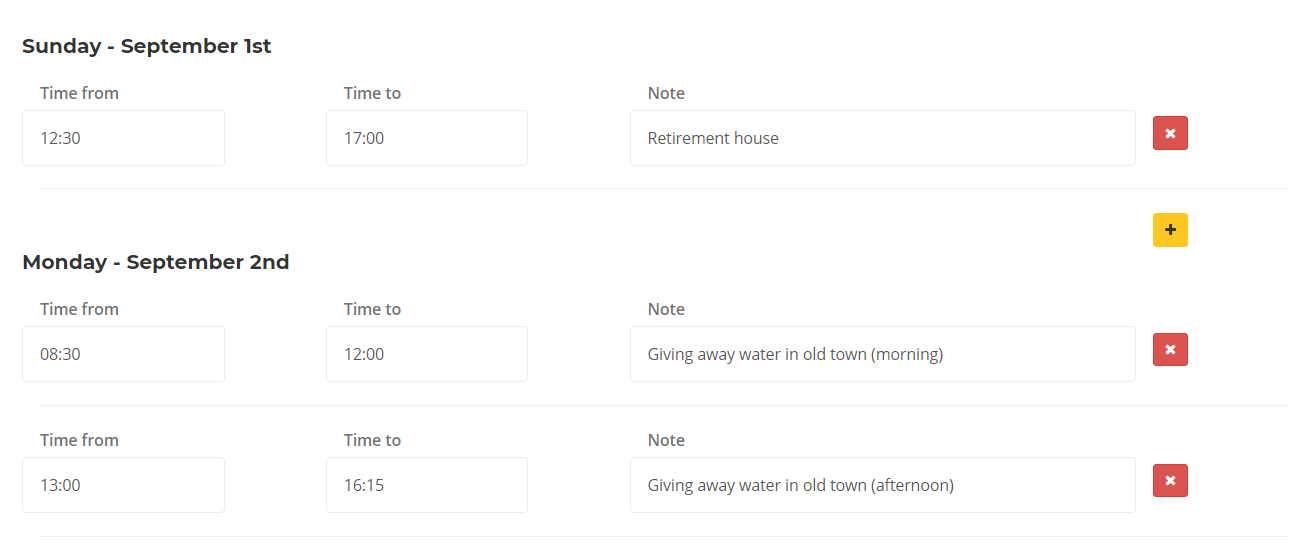
At the very bottom of the page, you have a special free text field for writing your notes. You can use it to mark anything important related to report, for example you can mentioned that you were sick and unable to work for a given week.

Notice that after saving your first draft, an overview of your working days and hours will be displayed under the status.

Tip
Before submitting, you can update your working hours as many times as needed, so be sure to always mark your hours every few days to make the whole process easier for you.
Submitting working hours
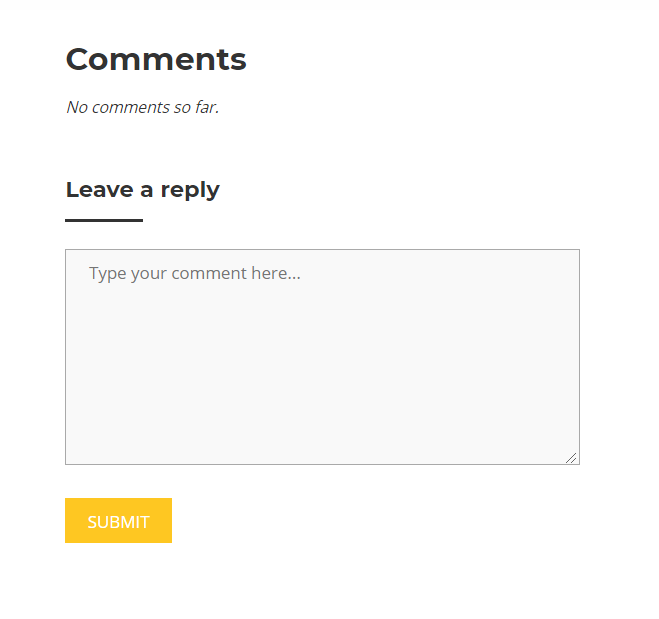
Once your report is saved for the first time, comments section will become available to you. This is especially useful before submitting the form when you discuss validity of reported hours with your organization.
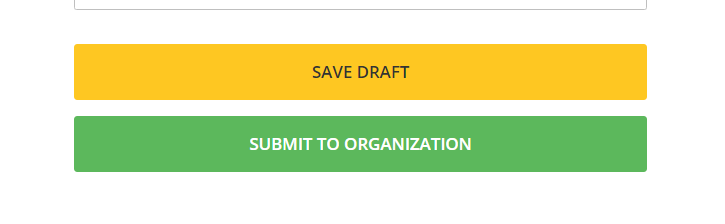
When everything is filled and you are happy with the time sheet, you should submit it for your organization for review. You can do so with Submit to organization button that is below Save draft button. Please note that once you submit your report, you can no longer make any changes to it.
Submitted forms will look like this:

Rejected and accepted reports
It is up to an organization to review your submitted report. If they find some issues, they will reject it, make it editable again and probably give you instructions on how to correct it (check comments section). Apart from being notified by e-mail, you'll see this directly in that given report:
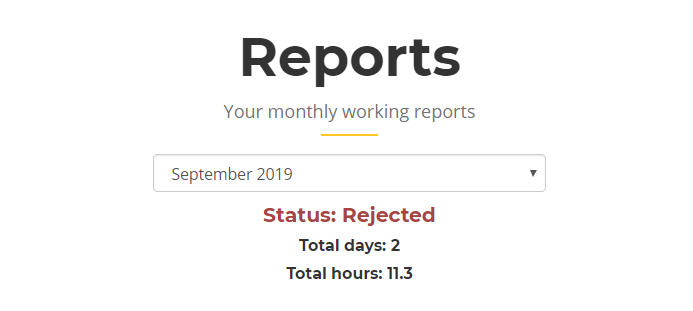
However, if everything is alright, they will accept it, which will complete the process of reporting your working hours.

Exporting accepted reports
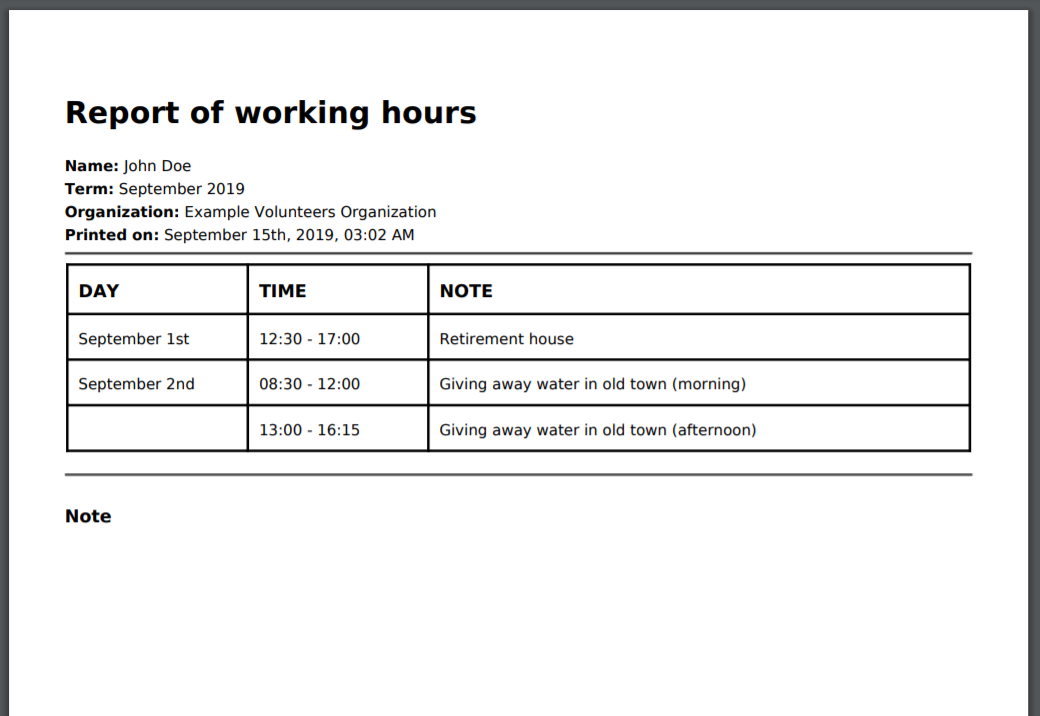
If you need to share or print your report, you can export it directly to PDF. This is how it will look like:
Be gentle on our nature
Think twice before printing your report - is it really necessary? Wouldn't be sending exported PDF through e-mail more efficient?